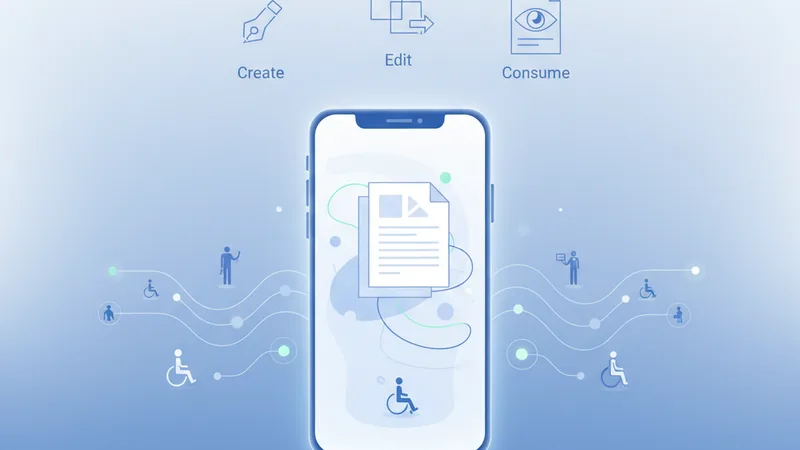
In an era where our smartphones are often our primary computing devices, the ability to access, create, and share documents on the go is more critical than ever. PDFs, with their universal compatibility and consistent formatting, have become the de facto standard for everything from professional reports to personal documents. However, true universality extends beyond mere file format – it encompasses accessibility. For millions worldwide, interacting with digital content hinges on whether it's designed to be inclusive, especially on the compact screen and touch interface of a mobile device. This guide delves into the essential world of mobile PDF accessibility, empowering you to both consume and create inclusive documents directly from your pocket.
Mobile Accessibility: Why It's Crucial
The ubiquity of smartphones has fundamentally reshaped how we interact with information. We read news, send emails, fill out forms, and review reports—all from the palm of our hand. But as our digital lives increasingly converge on mobile, so too must our understanding and implementation of accessibility standards. An inaccessible PDF isn't just an inconvenience; it's a barrier that excludes individuals from critical information, education, employment, and civic participation.
The Exploding Mobile Landscape
Current statistics paint a clear picture: a significant majority of internet users globally access the web primarily via mobile devices. This isn't just about casual browsing; it's about conducting serious business, studying, and managing daily life. PDFs are integral to this ecosystem, serving as the backbone for everything from bank statements and academic papers to government forms and medical records. If these documents aren't mobile-accessible, they effectively become invisible to a substantial portion of the population, including those who rely on assistive technologies.
The Moral and Legal Imperative
Beyond the practical considerations, there's a profound moral and legal obligation to ensure digital content is accessible. Regulations like the Americans with Disabilities Act (ADA) in the U.S., Section 508, and international guidelines such as the Web Content Accessibility Guidelines (WCAG) have established a legal framework for digital inclusion. While WCAG primarily focuses on web content, its principles are broadly applicable to digital documents, including PDFs. Furthermore, the PDF/UA (Universal Accessibility) standard specifically outlines how to create PDFs that are truly accessible to all users, particularly those using assistive technologies. Embracing these standards isn't just about compliance; it's about fostering a more equitable digital world.
Bridging the Digital Divide
Mobile accessibility plays a pivotal role in bridging the digital divide. For many, a smartphone is their only internet-connected device. Ensuring that PDFs are inclusive means that individuals with visual impairments can use screen readers, those with motor disabilities can navigate with ease, and individuals with cognitive differences can process information without unnecessary hurdles. It's about ensuring that everyone, regardless of their abilities, can fully participate in the mobile-first world.
What Makes a PDF Inclusive?
An inclusive PDF is meticulously structured and tagged, allowing assistive technologies to interpret its content accurately and present it meaningfully to the user. It's much more than just a visible document; it's a document with a hidden, semantic layer designed for universal understanding.
Key Characteristics of Accessible PDFs
- Proper Tagging Structure: The most fundamental aspect. Tags define the logical reading order and semantic meaning of content (e.g., headings, paragraphs, lists, tables). Without proper tags, a screen reader cannot differentiate a heading from a paragraph, or read content in the correct sequence.
- Alternative Text (Alt Text) for Images: Every image, chart, or graphic that conveys information must have descriptive alt text. This allows screen readers to vocalize the visual content, providing context to users who cannot see the image.
- Semantic Structure: Using proper headings (H1, H2, H3, etc.), lists (ordered and unordered), and tables with identified headers. This provides navigation points and structure for users, much like a table of contents.
- Logical Tab Order for Forms: If your PDF contains interactive forms, the tab order must be logical, allowing users to navigate fields sequentially using a keyboard or assistive input devices.
- Language Identification: The document's primary language should be specified so that screen readers can use the correct pronunciation engine. Changes in language within the document should also be marked.
- Good Color Contrast: Text and background colors must have sufficient contrast to be readable by individuals with low vision or color blindness. WCAG provides specific ratios for this.
- Font Embedding: All fonts used in the document should be embedded to ensure consistent display across different devices and to allow text to be extracted and reflowed without issues.
- Use of Real Text, Not Just Scanned Images: Scanned documents are often "image-only" PDFs, meaning the text isn't selectable or readable by screen readers. Optical Character Recognition (OCR) is crucial to convert image-based text into searchable, accessible text.
PDF/UA and WCAG: The Standards
PDF/UA (ISO 14289-1) is the international standard specifically for accessible PDFs. It provides a comprehensive set of requirements for document creators, outlining how to build PDFs that meet the highest accessibility benchmarks. When a PDF is "PDF/UA compliant," it signifies that it has been meticulously structured and tagged for optimal use with assistive technologies.
WCAG (Web Content Accessibility Guidelines), developed by the W3C, is the global benchmark for web accessibility. While primarily web-focused, its principles (Perceivable, Operable, Understandable, Robust) are directly applicable to PDFs. For instance, the WCAG guidelines on color contrast, alternative text, and logical structure translate directly to PDF accessibility. Meeting WCAG standards for your PDFs ensures a broader reach and compliance with various legal requirements.
Reading Inclusive PDFs on the Go
Consuming accessible PDFs on your mobile device is often a more straightforward process than creating them. The key lies in utilizing the right tools and understanding your device's built-in accessibility features.
Choosing the Right Mobile PDF Reader
While most smartphones come with a default PDF viewer, not all are equally adept at handling accessible documents. Look for PDF readers that offer:
- Screen Reader Compatibility: Essential for users with visual impairments. The reader should correctly interpret PDF tags and pass the information to your device's screen reader (e.g., VoiceOver on iOS, TalkBack on Android).
- Reflow Capabilities: An accessible PDF should ideally allow text to reflow and adjust to different screen sizes and zoom levels, preventing the need for excessive horizontal scrolling.
- Text-to-Speech Integration: Some readers have built-in text-to-speech, or they work seamlessly with the device's native functionality.
- High Contrast Modes: Features that allow users to adjust background and text colors for better readability.
- Zoom and Magnification: Robust zoom features are crucial for users with low vision to enlarge specific parts of the document without losing context.
Many popular PDF apps offer these features, and your device's native PDF previewers are also constantly improving their accessibility support.
Leveraging Mobile Accessibility Settings
Your smartphone is equipped with powerful accessibility features that can significantly enhance your experience with PDFs:
- iOS (iPhone/iPad):
- VoiceOver: Apple's robust screen reader. When enabled, it reads aloud everything on the screen and allows navigation via gestures.
- Zoom: Magnifies the entire screen or a specific portion.
- Display & Text Size: Allows you to increase text size, bold text, reduce transparency, increase contrast, and invert colors.
- Speak Screen/Speak Selection: Can read the content of an entire screen or a selected portion aloud.
- Android:
- TalkBack: Google's screen reader, providing spoken feedback and notification alerts.
- Magnification: Similar to iOS Zoom, magnifies the screen.
- Select to Speak: Tap on specific items on your screen to hear them read aloud.
- High contrast text/Color inversion: Adjusts display settings for better visibility.
Familiarize yourself with these settings; they are your first line of defense against inaccessible content.
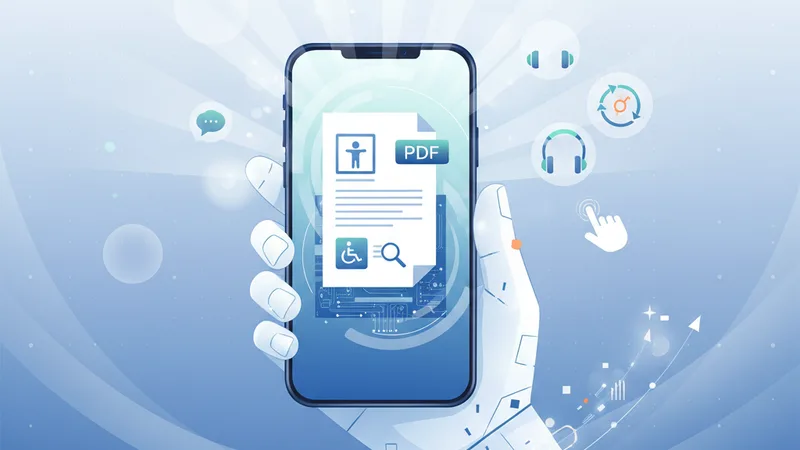
Practical Tips for a Better Reading Experience
When you encounter a PDF on your phone, here are some quick checks and actions you can take:
- Try to Select Text: If you can select text within the PDF, it’s likely not an image-only document and has a basic level of text accessibility. If you can’t select text, it's a scanned image, and you'll need OCR to make it readable by screen readers.
- Test Reflow: Pinch-zoom to see if the text adjusts its layout to fit the screen. If it just magnifies the entire page without adapting, it’s not reflow-enabled.
- Engage Your Screen Reader: Turn on VoiceOver or TalkBack and navigate the document. Does it read the content in a logical order? Does it identify headings and lists? This is the ultimate test of a PDF's accessibility.
- Adjust Display Settings: Don't hesitate to use your device's accessibility settings to increase font size, adjust contrast, or invert colors for personal comfort and readability.
Crafting Inclusive PDFs from Your Pocket
Creating fully accessible PDFs directly from a mobile device presents unique challenges. The robust desktop software used for advanced PDF tagging is generally not available on smartphones. However, with the right approach and complementary tools, you can still lay a strong foundation for accessible mobile-generated documents.
The Challenges of Mobile PDF Creation
Mobile apps, by nature, prioritize simplicity and speed. This often means sacrificing the granular control over document structure and metadata that is crucial for accessibility. Native mobile document editors may not support semantic tagging, alt text for images, or even proper heading structures that transfer correctly into a PDF. The output is frequently a "flat" PDF that lacks the essential hidden layers for assistive technologies.
Best Practices for Mobile-Initiated Documents
While a desktop environment is always recommended for creating truly PDF/UA compliant documents, you can significantly improve the accessibility of mobile-initiated documents by following these best practices:
- Start with Accessible Source Documents (if possible): If you're compiling a PDF from multiple sources, try to ensure the original documents (e.g., Word, Google Docs) are created with accessibility in mind on a desktop first, then transferred to mobile for final touches or merging.
- Use Apps That Support Basic Structure: When creating content directly on your phone, opt for document editing apps that allow you to define headings, subheadings, and lists. This semantic structure is the most critical element for screen readers.
- Convert Carefully: How you convert your mobile-created content to PDF matters. Some apps simply "print to PDF," which can strip away any underlying structure.
- Leverage Browser-Based Converters: For instance, when you need to convert an image or a Word document into a PDF on your phone, a privacy-focused, browser-based tool like ContinuePDF can be invaluable. It ensures your data isn't stored, and many conversions retain basic text structure, forming a better foundation for accessibility. These tools often handle the underlying conversion process more robustly than basic app functions.
Essential Steps for Mobile-Generated Content
- Structure with Headings: Always use proper heading styles (e.g., H1 for the main title, H2 for major sections) within your mobile document editor. Do not just make text larger and bolder; use the actual heading styles.
- Create Lists Appropriately: Use the bulleted or numbered list features in your mobile app, rather than manually typing numbers or dashes. This allows the PDF to tag them as lists.
- Add Alt Text (Where Possible): Some advanced mobile document editors or image editing apps allow you to add alt text to images. If this option is available, use it!
- Avoid "Image-Only" PDFs: If you scan a document with your phone, use an app that performs Optical Character Recognition (OCR) to convert the scanned image into selectable, searchable text before saving it as a PDF. Without OCR, the document is inaccessible to screen readers.
Mobile Tools to Boost PDF Accessibility
While full-fledged accessibility remediation often requires desktop software, a growing ecosystem of mobile and browser-based tools can significantly assist in creating and managing more accessible PDFs on the go.
What to Look for in Mobile PDF Editors/Converters
When selecting mobile tools, consider features that directly impact accessibility:
- OCR (Optical Character Recognition): Absolutely essential for making scanned documents accessible. Good OCR will convert image-based text into selectable, searchable text, which is the first step towards screen reader compatibility.
- Basic Tagging Capabilities: Though rare in native mobile apps, some advanced PDF editors might offer rudimentary tag editing or at least preserve tags from well-structured source documents.
- Text Editing and Annotation: The ability to edit text directly can help clarify ambiguous phrasing, correct errors, and add contextual notes that improve readability.
- PDF Optimization: Tools that can optimize or compress PDFs can sometimes improve performance on mobile devices, indirectly aiding accessibility by making files quicker to load and navigate. For instance, when you're looking to compress a large document for easier mobile sharing, using a reliable tool ensures that essential text and structure are preserved.
The Role of Cloud-Based and Browser-Based Solutions
This is where mobile users can truly bridge the gap between limited native app functionality and robust desktop tools. Browser-based PDF platforms offer a powerful alternative, accessible from any mobile browser without needing app installations.
- Advanced Conversions: These platforms can often perform more sophisticated conversions, such as turning a PDF into an editable Word document, allowing for desktop-level accessibility edits, and then converting it back to a PDF.
- Document Manipulation: Tasks like merging multiple PDFs or splitting a large document can be done easily and securely. When you're dealing with PDFs on the go and need to ensure their integrity and potential for accessibility, browser-based platforms like ContinuePDF offer a secure and convenient way to manage your files. Using a platform that respects your privacy is paramount, especially when handling sensitive information.
- OCR Integration: Many online PDF tools include powerful OCR capabilities, enabling you to process scanned documents into accessible text even when you're away from your desktop.
Post-Creation Accessibility Checks (Desktop is Best, but Mobile Checks Exist)
While a comprehensive accessibility check (like using Adobe Acrobat Pro's Accessibility Checker) is best done on a desktop, you can perform basic checks on your mobile device:
- Text Selectability: Can you select individual words and paragraphs? If not, it's an image-only PDF.
- Text Reflow: Does the text adapt to zoom levels?
- Screen Reader Test: Activate your device's screen reader (VoiceOver/TalkBack) and navigate through the document. Pay attention to reading order, how images are described (or not described), and whether headings are recognized.
- Color Contrast Analyzer (Apps Available): Some mobile apps allow you to check color contrast ratios directly from your screen, ensuring readability.
The Road Ahead for Mobile PDF Accessibility
The landscape of digital accessibility is constantly evolving, and mobile PDF accessibility is no exception. As technology advances, we can anticipate even more sophisticated tools and features becoming available directly on our smartphones, making inclusive document creation and consumption even more seamless.
AI and Machine Learning Innovations
Artificial Intelligence (AI) and Machine Learning (ML) are poised to revolutionize mobile PDF accessibility. We can expect:
- Automated Tagging: AI models will become increasingly adept at identifying document elements (headings, paragraphs, lists, tables) and automatically applying appropriate PDF tags, significantly reducing the manual effort required.
- Intelligent Alt-Text Generation: Advanced image recognition AI can generate descriptive alternative text for images with greater accuracy and nuance, making visual content more understandable for screen reader users.
- Improved OCR: Next-generation OCR will not only convert images to text but also retain more of the original document's structure and layout, leading to higher quality accessible outputs.
- Content Simplification: AI could potentially identify complex language or sentence structures and suggest simpler alternatives, aiding users with cognitive disabilities.
Growing Awareness and Tool Development
As accessibility awareness grows, so too does the demand for accessible digital tools. We can expect:
- Mobile-First Accessibility Features: Developers of mobile document editors and PDF apps will increasingly integrate accessibility features directly into their core functionalities, making it easier to create accessible content from the outset.
- Cloud-Based Remediation Services: More powerful cloud-based platforms will emerge that offer advanced PDF accessibility remediation, allowing users to upload a PDF and receive an accessible version with minimal manual intervention.
- Standardization and Education: Continued efforts in standardizing PDF accessibility (like further development of PDF/UA) and widespread education on best practices will empower more users and developers to prioritize inclusive design.
As digital landscapes evolve, tools like ContinuePDF continue to adapt, providing a reliable and privacy-conscious foundation for all your PDF needs, ensuring that mobile users have access to essential document management without compromising security.
Actionable Takeaways
- Always enable and utilize your mobile device's built-in accessibility features (VoiceOver, TalkBack, Zoom, etc.) when consuming PDFs.
- Choose mobile PDF readers that support reflow, screen reader compatibility, and text-to-speech.
- When creating documents on your phone, prioritize semantic structure (headings, lists) in your source app.
- Use OCR-enabled scanning apps for any physical documents you convert to PDF on mobile.
- Leverage privacy-focused, browser-based PDF tools like ContinuePDF for conversions, merges, and other manipulations to preserve document integrity and foundational accessibility.
- Perform basic accessibility checks (text selection, reflow, screen reader test) on any PDF you encounter or create on your mobile device.